Open-Channel SSD Series (4): Getting Started with CNEX Labs Westlake SSD
Practical step-by-step guide to setting up an Open-Channel SSD using CNEX Labs Westlake hardware, from kernel compilation to file system mounting.
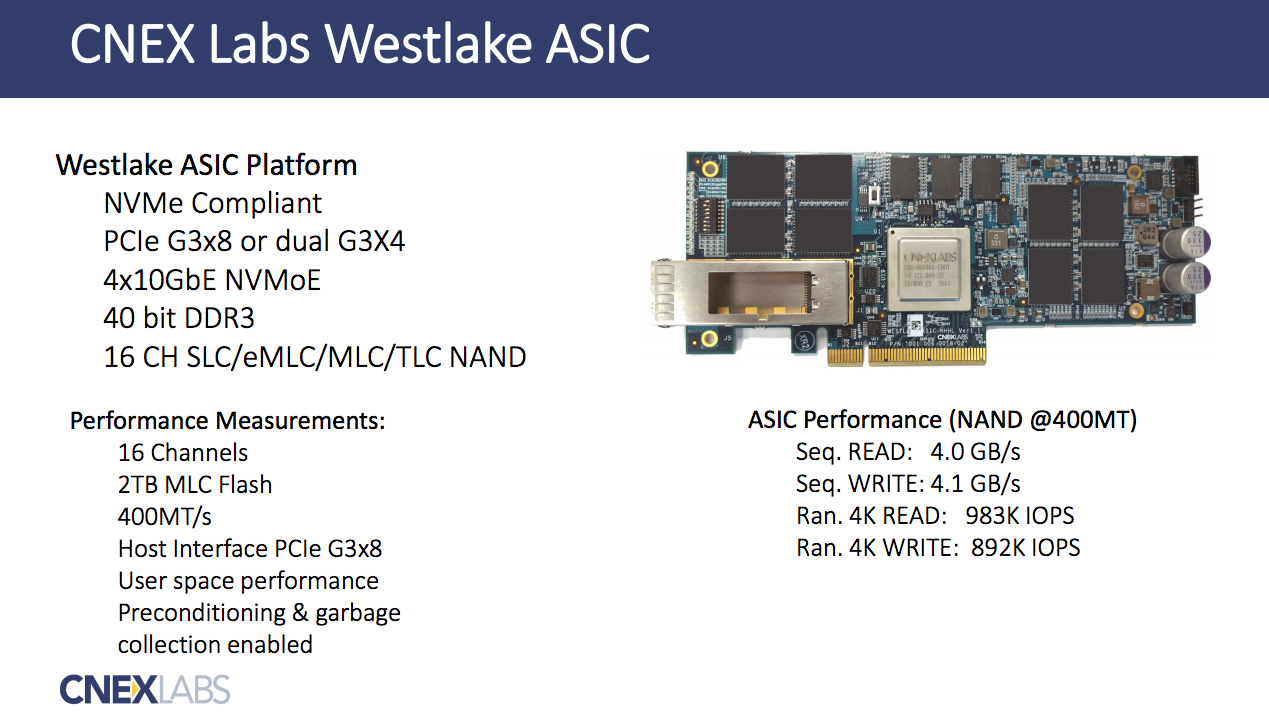
Original documentation: https://openchannelssd.readthedocs.io/en/latest/
1. Install a Supported Linux Kernel
LightNVM has been supported since Linux kernel 4.4. pblk is available since 4.12+, so make sure to install kernel 4.12 or later.
The latest source is available at https://github.com/OpenChannelSSD/linux.
Tip: When using CNEX hardware, clone the
pblk.cnexbranch, which includes additional patches:
git clone -b pblk.cnex https://github.com/OpenChannelSSD/linux
When compiling the kernel, ensure your .config includes at minimum:
1
2
3
4
CONFIG_NVM=y
CONFIG_NVM_DEBUG=y
CONFIG_NVM_PBLK=y
CONFIG_BLK_DEV_NVME=y
After booting the supported kernel, verify that these requirements are met:
- A compatible device (QEMU NVMe or CNEX Labs LightNVM SDK).
- A media manager on top of the device driver (manages the device partition table).
- A target on top of the block manager that exposes the Open-Channel SSD.
Tip: Requirement #2 (media manager) is deprecated since kernel 4.8 — you no longer need to worry about it. See: https://github.com/OpenChannelSSD/documentation/issues/5
2. Install nvme-cli
nvme-cli is the tool for managing NVMe devices. Install it from source:
1
2
3
git clone https://github.com/linux-nvme/nvme-cli
cd nvme-cli
sudo make && sudo make install
Or, on Ubuntu:
1
2
3
sudo add-apt-repository ppa:sbates
sudo apt-get update
sudo apt-get install nvme-cli
For other distributions, refer to the nvme-cli GitHub project.
3. Using Open-Channel SSD Hardware
If you have a CNEX Labs LightNVM SDK or another Open-Channel SSD, list available devices:
1
sudo nvme lnvm list
Expected output:
1
2
3
Number of devices: 1
Device          Block manager   Version
nvme0n1         gennvm          (0,1,0)
4. Instantiate Media Manager and Target
Enumerate and initialize the device:
1
2
3
sudo nvme lnvm list
sudo nvme lnvm init -d nvme0n1
sudo nvme lnvm create -d nvme0n1 --lun-begin=0 --lun-end=3 -n mydevice -t pblk
For faster initialization (skips L2P table recovery from the device):
1
sudo nvme lnvm create -d nvme0n1 --lun-begin=0 --lun-end=3 -n mydevice -t pblk -f
Alternative syntax:
1
sudo nvme lnvm create -d /dev/nvme0n1 -n mydevice -t pblk -b 0 -e 127
Use --help for details on each sub-command:
1
sudo nvme lnvm create --help
This exposes /dev/mydevice as a standard block device backed by nvme0n1.
Note: At the time of writing, pblk was only available in the LightNVM Linux kernel GitHub repository and had not yet been upstreamed.
5. Mount and Use
If everything succeeded, format and mount the device:
1
2
3
sudo mkfs -t ext4 /dev/mydevice
sudo mkdir /media/nvme
sudo mount /dev/mydevice /media/nvme
You should see the nvme directory created and mounted to /dev/mydevice.
6. Extra Notes
During initial experiments, I used Ubuntu 16.04 Desktop and encountered problems such as kernel panics and mkfs hanging indefinitely. Switching to Ubuntu 16.04 Server resolved these issues.
2026 Update Note
- This post was migrated from the original blog and language-polished in 2026.
- The CNEX Labs hardware and the
pblk.cnexbranch are now legacy. For modern open-channel SSD or ZNS SSD work, refer to the NVMe ZNS specification and the kernel’s zoned block device interface.